
Extract Colour From An Image and How To Use it…
Copy the image you are working on and save it as JPEG then open up Adobe Colour Wheel and choose Extract Colour
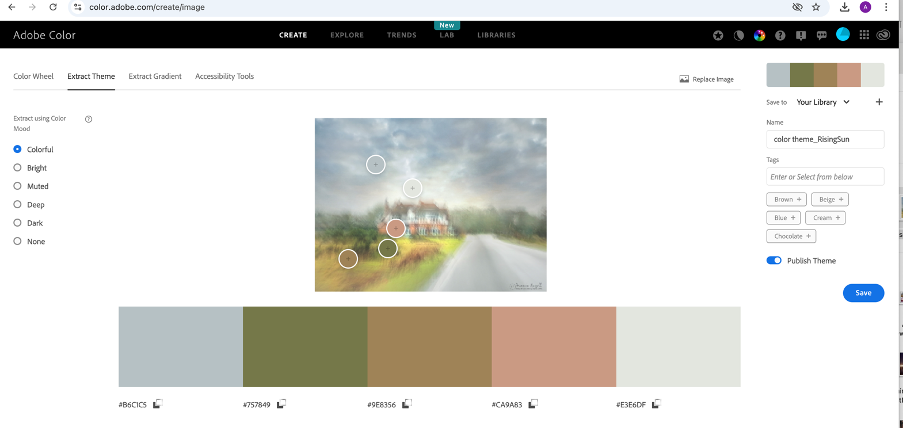
You’ll get information like mine below…. You can drag the little circles on the image around if you don’t like the colours it’s picked and then save the colour palete with a name and it’ll appear in your Creative Cloud (if you have one) or use the #number in photoshop or your editing software to chose the exact colour match..
Recolour a texture to match some of the sampled colours and you’re guaranteed analogous colours…without all the guesswork!Extract Colour From An Image and How To Use it…
Copy the image you are working on and save it as JPEG then open up Adobe Colour Wheel and choose Extract Colour
You’ll get information like mine below…. You can drag the little circles on the image around if you don’t like the colours it’s picked and then save the colour palete with a name and it’ll appear in your Creative Cloud (if you have one) or use the #number in photoshop or your editing software to chose the exact colour match..
Recolour a texture to match some of the sampled colours and you’re guaranteed analogous colours…without all the guesswork!
You’ll find the adobe colour wheel at https://color.adobe.com/create/color-wheel
