Analogous colours are basically colours next to each other on the colour wheel. If you’re not sure where to find the colour wheel – check out Adobe’s colour wheel (click here).
The way I understood it best was this – analogous colours are like friends that share the same traits… blending naturally when put together… They ‘re often used in design to create unity, flow and subtle transitions…
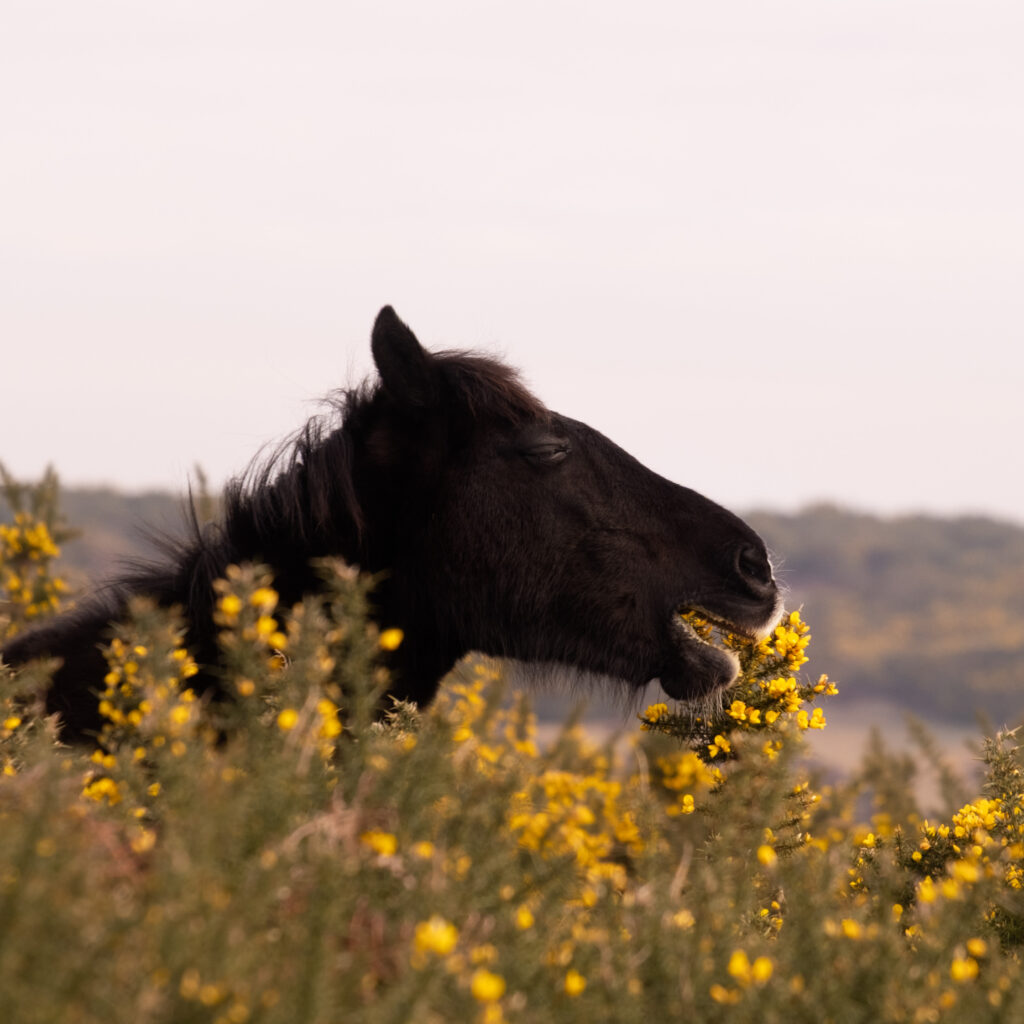
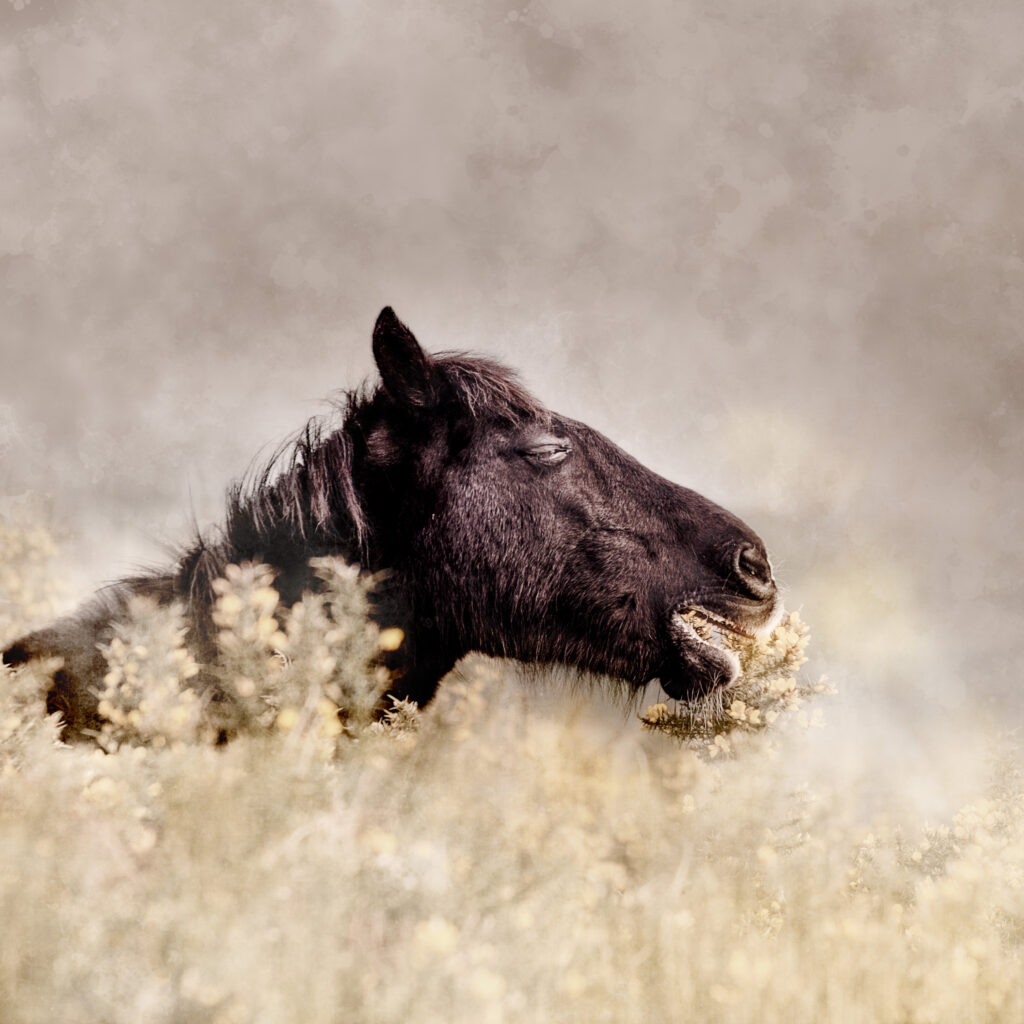
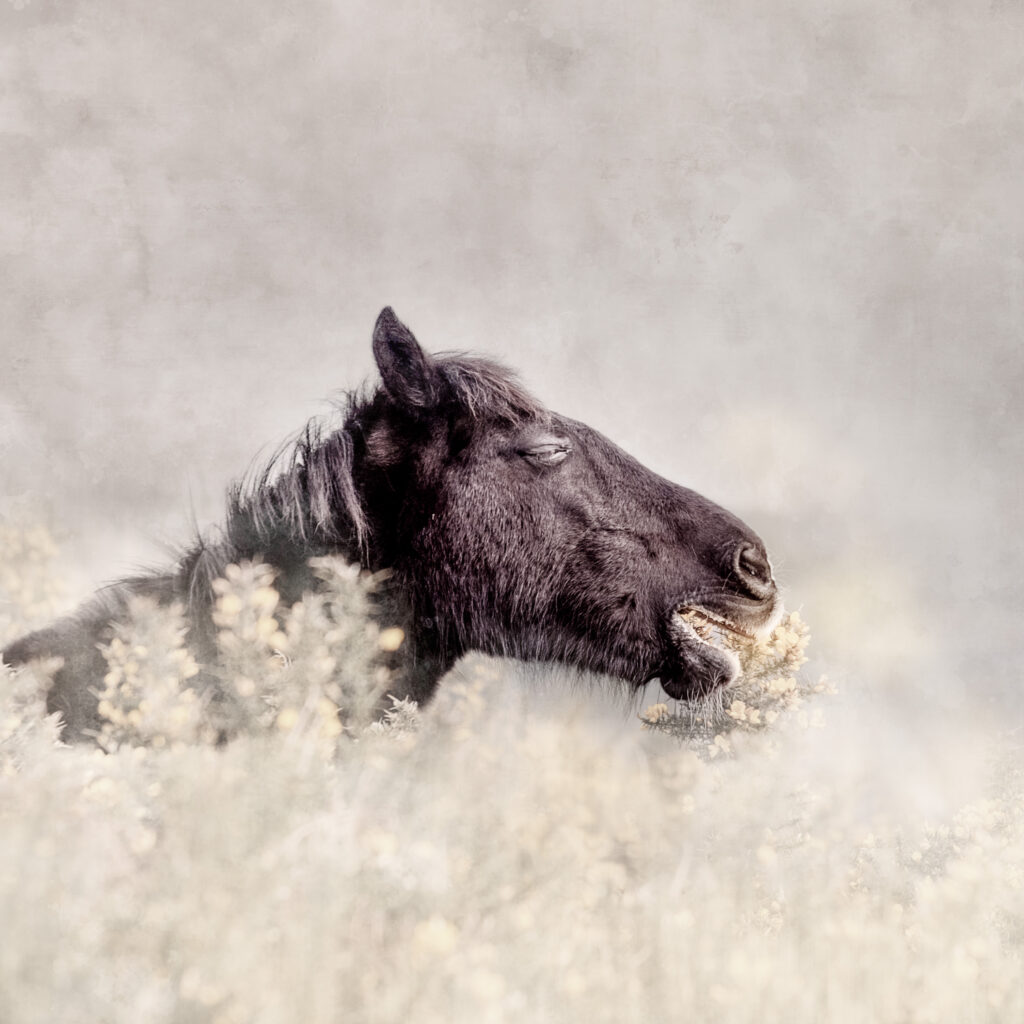
I LOVE to use analogous colours to blur out messy distracting backgrounds. The New Forest ponies, my favourite muse, have a habit of doing interesting things when standing in the most inconvenient messy places… Getting some arty editing done is often the only way to get an image looking a little lovelier….
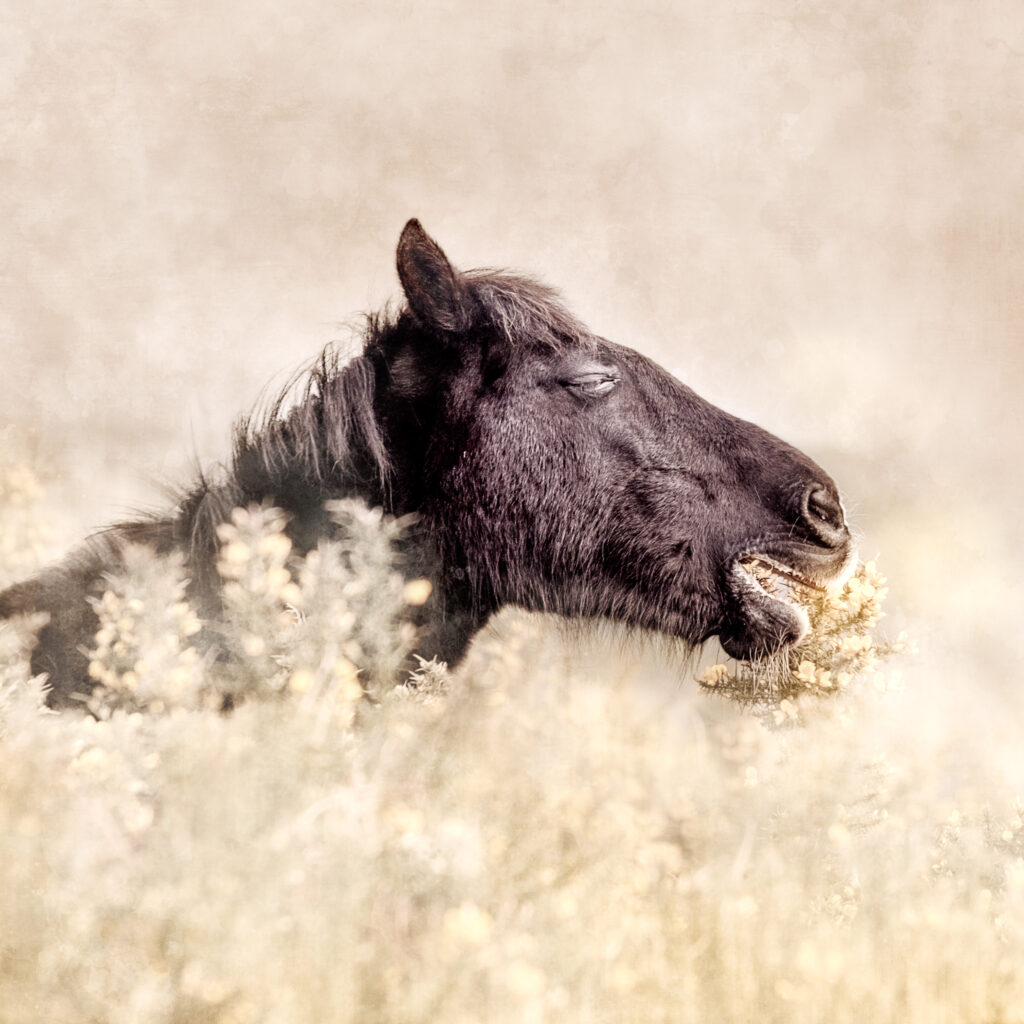
You can colour pick from the image to choose your analogous colour…
This is the edit I like the most at the moment…although I think the background is still not quite right… I’ll go back to it tomorrow..
This was all created with brushes no textures added… I prefer to keep creative control by using brushes to create the texture…
You do that by selecting the brush tool first (find it on the left-hand tools panel or simply hit B for the brush tool)…
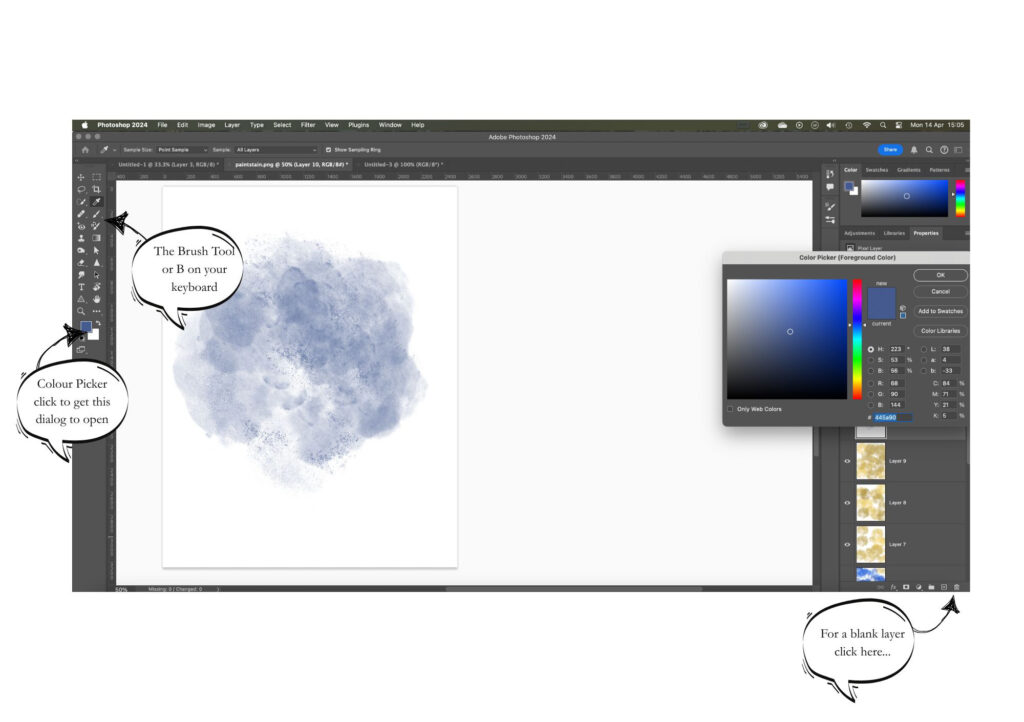
Then hold down Option or Alt (depending if you’re on a PC or a Mac) you’ll see the colour picker on the screen now – click where you’d like to select the colour.
If it’s not precisely what you want, click on the colour box and you’ll get the colour picker dialog box appear – so you can adjust it…
And now use your favourite brush to paint on a NEW LAYER (that’s the + icon on the layers panel) and use a blend mode to blend it in… no need to add textures doing things this way – you create your own as you play…
TIP – create new layers for each area of the image so you have maximum control over the blend modes, opacity and fill for each colour/area…
If you’d like more on this, a video tutorial please let me know and I’ll put one together…
I’m adding short tutorials to a new YouTube channel regularly from last week so check that out the videos are embedded here in the posts too…
Any ideas? Tutorials you’d like? Brushes you’d love me to (try) and create? Let me know…
Don’t forget to stay in touch – sign up for the newsletter/magazine – I’m going to do one a month and fill it with tips, ideas, things I’ve learned and anything else I can lay my hands on photographically speaking…
Want to get in touch? My instagram name is amanda_andhercamera – link in the bar to the right…