
Create a Texture Brush in Photoshop
Here’s the video on how to make a brush from nature’s textures…below are typed out instructions and some trouble shooting if you’re stuck…
And here’s the button for you to download my brush.
For some odd reason the video isn’t always showing here – if that’s the case follow this link to my youtube channel and the right page – and don’t forget to come back :).
Here’s the link VIDEO
Trouble Shooting
The ‘define brush preset button is greyed out’?
Most likely causes are
- You’re not on the right layer. You must have the layer you’re cutting out from selected – if like I had in the video – you’ve got an adjustment layer selected it will grey out define brush preset…
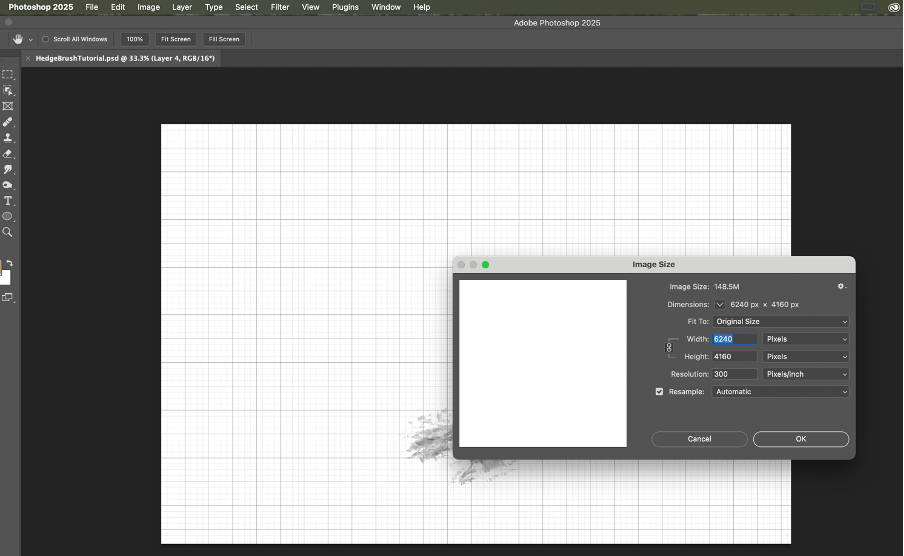
- The image is too large – if images are too large it will grey out define brush preset – to reduce your image size (make sure the image layer is selected) then go layer – image size and reduce the size….
To reduce your image:
Use the layer menu – Image Size – manually change the first width box and photoshop will adjust the rest if you have original size selected in the ‘fit to’ option…
I’ve got bits of the image showing on the brush I don’t want, what do I do?
Go back to your mask and use a black brush to paint away anything you don’t want included in the brush (remember – black hides, white reveals)…
I can’t make mine blend properly into the white background?
Try right clicking the layer and using blend if…
How did you create the white layer again?
Use the + icon at the bottom of the layers panel to create a blank transparent layer. Then with that layer selected – shift and delete together give you the same dialogue box as going Edit – Fill… (I love short cuts!!)
I want some lessons. Do you teach?
Yes, I teach on Zoom beginners to advanced compositing one to one this line is the link
Or, I have an online course called The Artful Edit that takes you through all sorts of fun stuff from painting on your images, creating textures, brushes and how to use them art-fully. Check out the menus at the top for full information.
